How to Clip on Xbox — Record, Find and Download Your Clips (2026)

One button records your last 30 seconds on any Xbox — the tricky part is what happens next: length caps, a scattered capture library, and 90-day deletion on the Xbox network. Here's how to record, find, download and keep your Xbox clips.
An Xbox clip is a short gameplay video captured by your console — either the last 30 seconds the Xbox was already buffering, or a recording you start yourself. Every Xbox One and Series X|S can record game clips out of the box, no extra software needed. Here is how to capture your best gaming moments, where the game captures actually live, and how to get them off the console before the Xbox network quietly deletes them.
How to Clip on Xbox: Record the Last 30 Seconds
- Press the Share button on a Series X|S controller (or double-tap the Xbox button on older controllers).
- That saves what just happened in the game — by default, the last 30 seconds.
- To start a recording instead, press the Xbox button, go to Capture & share, and choose Start recording. The same menu takes screenshots.
That is the whole answer to “how do I clip my gameplay” on a console: one button press, saved retroactively, exactly like instant replay on PC.
How to Record Longer Xbox Clips
The default game clips are short, and the walls are real:
- From the Capture & share menu you can capture the last 15 seconds up to the last few minutes, depending on resolution.
- Recordings you start manually run up to 10 minutes to internal storage, and longer (up to an hour) if you record to an external USB drive.
- Capturing 4K HDR game clips eats storage fast and shortens the maximum length — the fix is to drop to 1080p in Settings → Preferences → Capture & share, an option most players never find.
If you are wondering how to record for longer than 10 minutes on Xbox without a USB drive: you can't, natively — Microsoft caps the feature. That is what capture cards (and streaming) are for, or playing the same games on PC, where recording length is not capped.
Where to Find Your Xbox Clips
Your clips and screenshots live in more places than most players realise:
- On the Xbox console: press the Xbox button → Capture & share → Recent captures. Recent clips show first; Show all opens the full library of game captures.
- On your phone: the Xbox app (iOS and Android) shows your captures under your profile — this is the fastest route to posting a clip to social media.
- On Windows: the Xbox PC app shows game clips uploaded to the Xbox network; there is no official way to browse console captures from a plain web browser anymore.
- Third-party viewers: the XboxClips and GamerDVR websites let you view your Xbox DVR game clips and screenshots — search your gamertag and everything you have uploaded to the Xbox network is accessible there.
How to Download Xbox Clips to Your Phone or PC
- Upload first. On the Xbox console, open the capture, choose Upload to Xbox network (or OneDrive).
- Phone: open the Xbox app, find the clip in your captures, tap Download — then share it anywhere from your camera roll.
- PC: download from OneDrive, from the Xbox PC app on Windows, or copy captures directly to a USB drive on the console (Manage captures → Copy to external storage) for full-quality files with no re-compression.
Edit and Manage Your Game Captures
The console's built-in trim tool (the successor to Upload Studio) lets you edit a clip's start and end before uploading; anything fancier — captions, montages, music — happens after you download, in a video editor or in the Xbox app on your phone. From Manage captures you can also review, rename and delete clips to free storage. Delete locally after uploading, not before.
Why Xbox Clips Disappear
Game clips uploaded to the Xbox network are automatically deleted after 90 days unless you download them, and Microsoft has trimmed network storage before with limited warning — Reddit threads full of “my clips are gone” comments appear every time it happens. Local captures can also be pushed out when console storage fills. If a clip matters, get it onto OneDrive, a USB drive, or your phone the week you make it. We cover the expiry rules — and what Xbox Live does and does not include — in our full guide to Gamer DVR and Xbox clips.
How to Share Xbox Clips
From the Xbox console you can share to your activity feed, a club, or a message to friends; from the Xbox app you can save the video and post it to TikTok, YouTube, X, Discord or anywhere else. The app route is the one to remember — download to phone, then share like any other video of your gaming moments.
Recording Xbox Gameplay for YouTube
Console clips work for short highlights, but YouTubers recording Xbox gameplay at length use one of two setups: a capture card between the console and a Windows PC (unlimited length, full quality, overlays), or playing the cross-platform version of the game on PC, where recording software has no 10-minute wall. If your games exist on PC, the second route is cheaper — and new games increasingly launch on both.
If You Also Play on PC: Clips Without the Limits
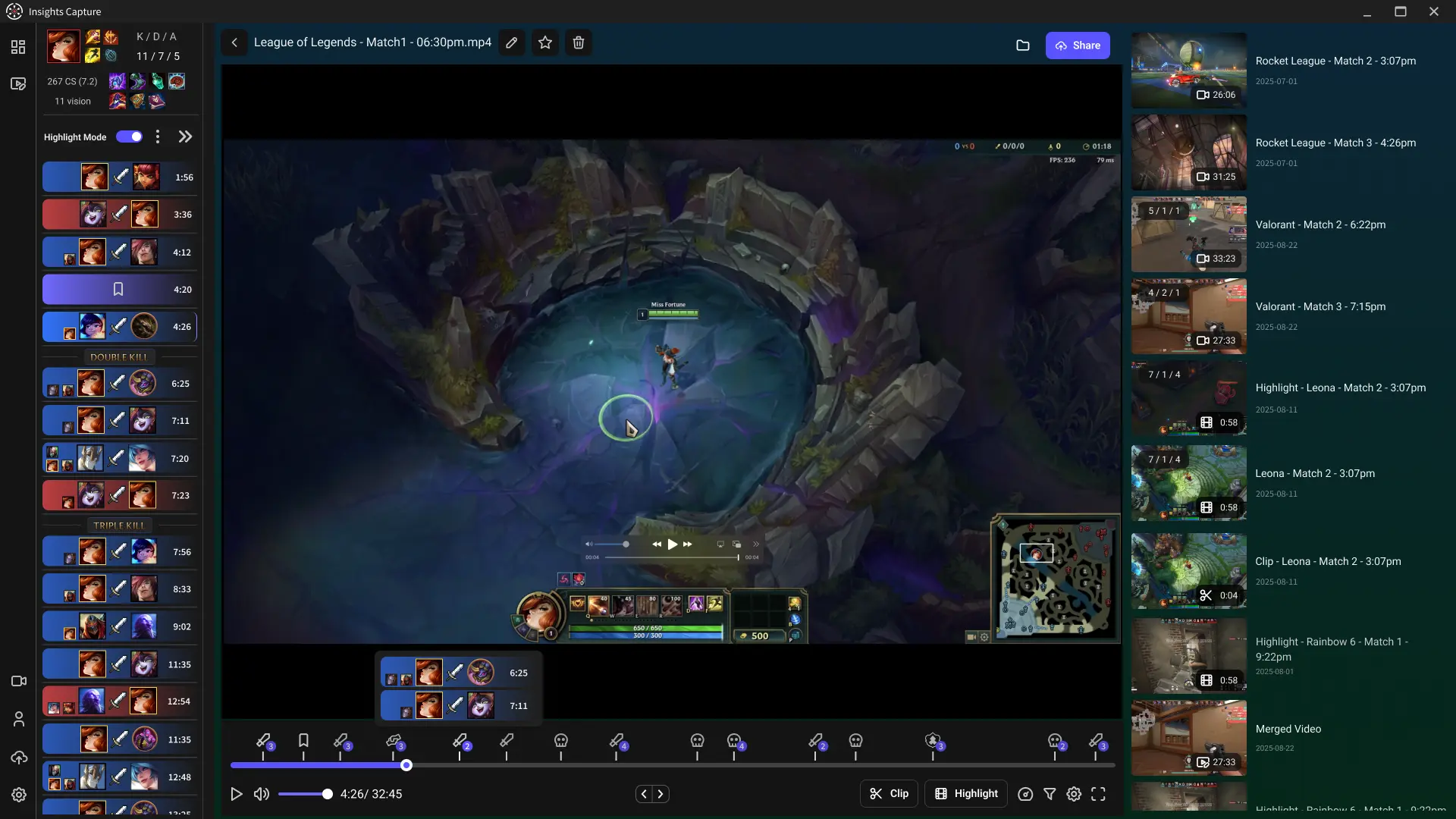
Everything above has a ceiling: clip length, 90-day expiry, storage juggling. On PC none of that has to exist — Insights Capture records every match automatically, keeps full sessions instead of a 30-second buffer, marks kills and wins on a timeline, and its share links do not expire. The feature set is free, and it is why many two-platform players clip casually on the console and do their serious capture on PC. New to PC clipping? Start with how to clip on PC.
{{button}}
FAQs: Xbox Clips
1. How do I record the last 30 seconds on Xbox?
Press the Share button on a Series X|S controller, or double-tap the Xbox button and press X on an Xbox One controller. The game clip saves retroactively.
2. How do I record longer than 10 minutes on Xbox?
Record to an external USB drive (up to about an hour), use a capture card, or play on PC where recording length is not capped.
3. Why are my Xbox game clips not recording?
Usually something simple is wrong: capture is disabled in Settings → Preferences → Capture & share, storage is full, or the game blocks capture on protected content. Checking those three will resolve the issue for almost everyone; Xbox support can help with the rest.
4. Where are my Xbox clips on my phone?
Open the Xbox app, tap your profile, then Captures. From there you can find and download any clip to your camera roll.
5. Do Xbox clips expire?
Yes — captures uploaded to the Xbox network are deleted after 90 days unless you download them. Local, OneDrive and USB copies are yours to keep.
6. Can I view my Xbox clips in a browser?
Not officially anymore. The XboxClips and GamerDVR websites can show network-uploaded clips and screenshots for any gamertag — the answer most players are looking for.
Final Thoughts
Clipping on Xbox is genuinely easy — one button, saved after the fact. The trap is what happens next: short caps, 90-day deletion, and a library of game captures scattered across console, app and cloud. Download the clips you care about, and if part of your play time is on Windows, let Insights Capture handle that side automatically. Contact us if you have questions.