How to Post Gaming Clips to TikTok (Full Workflow)

Getting a 16:9 PC clip onto a vertical feed without it looking terrible takes a few specific decisions. Here's the full workflow — which clips survive the crop, how long to cut them, export settings, captions for muted viewers, and a weekly routine that keeps you posting.
You clipped the play. Now it has to survive the trip from a 16:9 PC recording to a vertical feed without looking like a screenshot of a screenshot. Here's the workflow for posting gaming clips to TikTok, start to finish.
Step 1: Capture So You Have Something to Post
The bottleneck for most people isn't editing — it's not having clips. If you only capture when you remember to press a hotkey, you'll post twice a week at best.
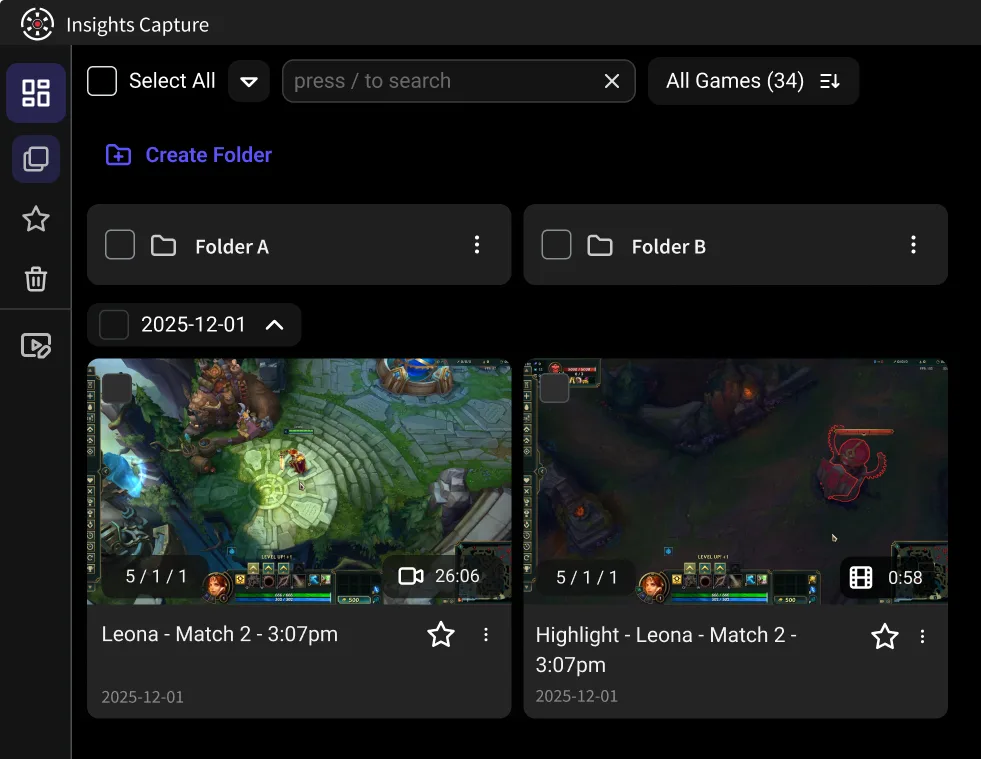
Running Insights Capture in the background fixes the supply problem: it records every match with no FPS loss and marks kills, wins and objectives automatically, so after a session you have a queue of flagged moments instead of hours of raw footage. Clip the good ones in two clicks and you've got a week of posts from one night of play.
{{button}}
Step 2: Pick Clips That Work Vertically
Not every highlight survives the crop. The ones that do share three traits:
- The action is centre-screen. Anything that depends on the edges of a wide monitor — a flank on your minimap, a teammate in the corner — gets cropped out.
- It reads in three seconds. Vertical viewers decide fast; the payoff should be obvious almost immediately.
- It doesn't need setup. If explaining the context takes longer than the clip, it's a YouTube video, not a TikTok.
Step 3: Trim Ruthlessly
Aim for 7–15 seconds for most gameplay clips. Cut everything before the moment starts — no walking, no reloading, no “wait for it.” If the play needs build-up, put the payoff in the first second as a hook, then show it in full.
Step 4: Get the Format Right
- Aspect ratio: 9:16 vertical. You have two options for a 16:9 recording — crop to the action (best when it's centred) or fit the clip in the upper two-thirds with a caption or background filling the rest (best when cropping would lose detail). Cropping usually wins for shooters.
- Resolution: export at 1080×1920. Higher won't help — the platform re-encodes anyway.
- Frame rate: match your source. Don't upscale frame rate. See our FPS guide.
- Format: MP4, H.264.
Step 5: Caption for People Watching Muted
A large share of feed views start muted. Put a short text hook on the first frame — “1v4 with 8 HP”, “this shouldn't have worked” — and keep it inside the safe area, away from the edges where the interface covers your video.
Step 6: Sound Matters More Than You'd Think
Keep the raw game audio if it carries the moment — the ace sound, your reaction. Layer music if the clip is quiet. And be considerate about voice comms: if teammates are audible, get their okay or mute the track. Recording tools that keep separate audio tracks make this a one-click decision instead of a re-record.
Step 7: Post Consistently, Then Read the Data
One good clip won't do much; twenty will teach you what your audience wants. Post daily if you can, watch which openings hold attention, and make more of those. This is exactly why automatic capture matters — consistency is a supply problem before it's a creative one.
The Repeatable Weekly Workflow
- Play as normal with auto-capture running.
- Once a week, open your library and clip 7–10 marked moments.
- Batch-crop them to 9:16 and add hooks.
- Schedule or post one per day.
- Note the top performer, and clip more like it next week.
FAQs: Gaming Clips for TikTok
1. What's the best clip length for TikTok gaming content?
7–15 seconds for most highlights. Longer only if the story genuinely needs it.
2. Should I crop or fit my 16:9 gameplay to vertical?
Crop when the action is centred, which covers most shooters. Fit when cropping would lose important detail, and fill the space with a caption or background.
3. How do I record gameplay for TikTok on PC?
Record at 1080p60 with GPU encoding, then crop to 9:16 when exporting. Automatic capture means you don't have to decide in the moment what's worth recording.
4. Do I need editing software?
Not for basics — trimming and cropping cover most gaming clips. CapCut is the common free choice for adding hooks and music.
5. How do I get more clips to post?
Stop relying on hotkeys. Background recording with automatic highlight detection turns every session into a queue of clips.
Final Thoughts
The players who post consistently aren't more creative — they just never run out of material. Get the capture layer running automatically, batch your edits once a week, and posting becomes a ten-minute habit instead of an evening. Insights Capture is free and handles step one; the rest is repetition. For every way to capture on PC, see How to Clip on PC. Contact us now!