How to Record CS2 Gameplay (Without Demo Files)

CS2 gives you demos — excellent for studying, terrible for sharing. Here's how to record CS2 as real video, the best settings for a competitive shooter, and how to use demos and recordings together instead of choosing between them.
CS2 gives you demos. Demos are excellent for studying and terrible for sharing. If you've ever wanted to send a friend your ace and realised you'd have to explain how to download a demo file, load it, find the round, and record their own screen — this guide is for you.
The Two Ways to Capture CS2
Demos (built in). CS2 records matches server-side; you can watch them back in-game with camera freedom, see other players' points of view, and analyse positioning. Nothing beats them for study. But a demo is a data file, not a video — you can't post it, it needs the game to play, and getting a clip out means recording your screen while you watch it back.
Video capture (what you actually share). Recording your screen produces a real video file that plays anywhere. This is what you want for clips, montages, and sending anything to anyone.
Serious players use both: demos to study, video to share.
Recording CS2 Automatically (The No-Effort Method)
The reason most CS2 clips never happen is that the moment is over before you think about it. Automatic capture solves that.
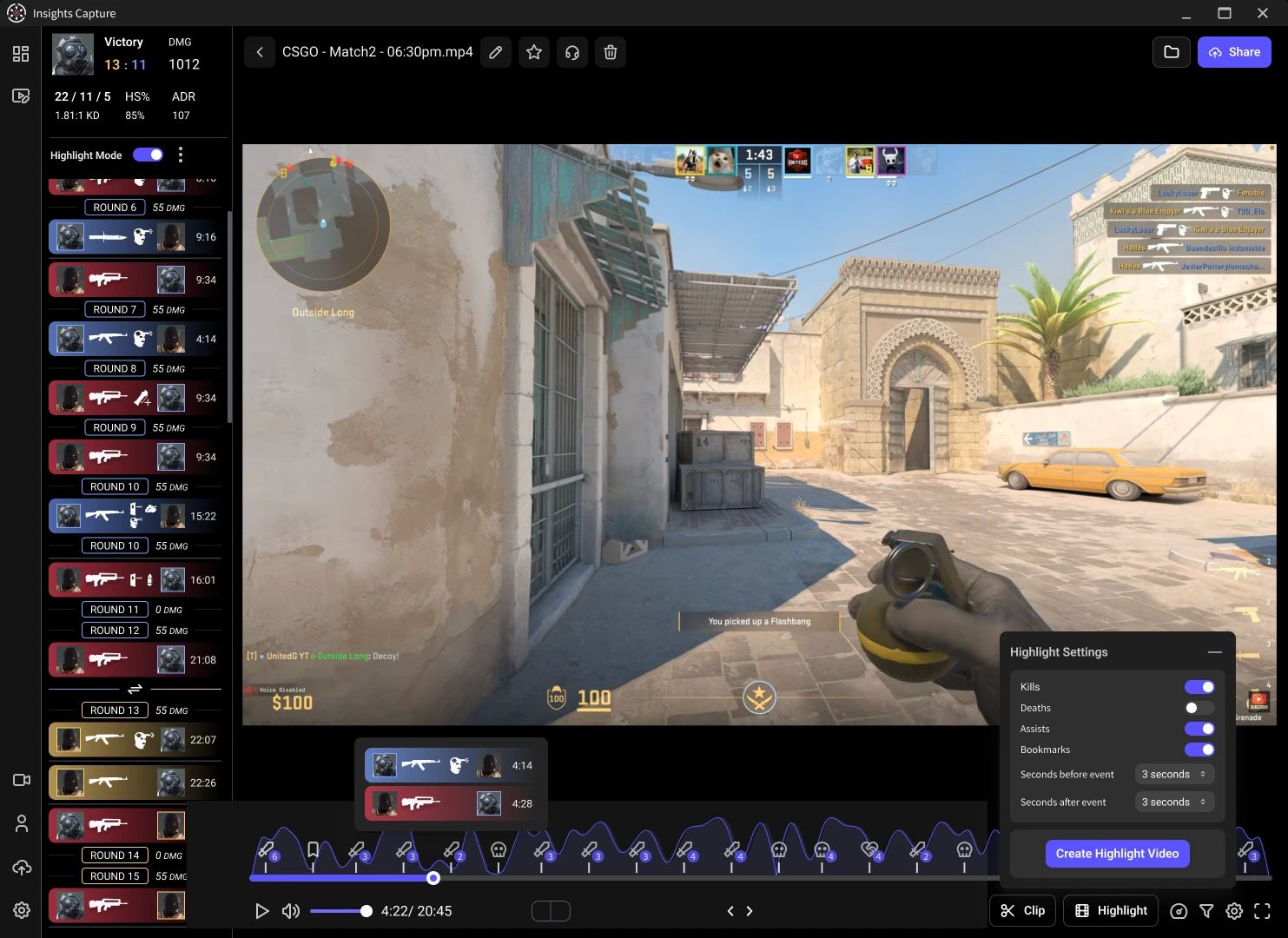
Insights Capture runs in the background, records every match with no FPS loss, and marks your kills, multi-kills and round wins on a timeline. After the match you open the recording, see your flagged moments, and clip the ace in two clicks — no demo file, no scrubbing, no “which round was that?”
- Install and sign in.
- Play CS2 as normal — recording starts automatically when the game launches.
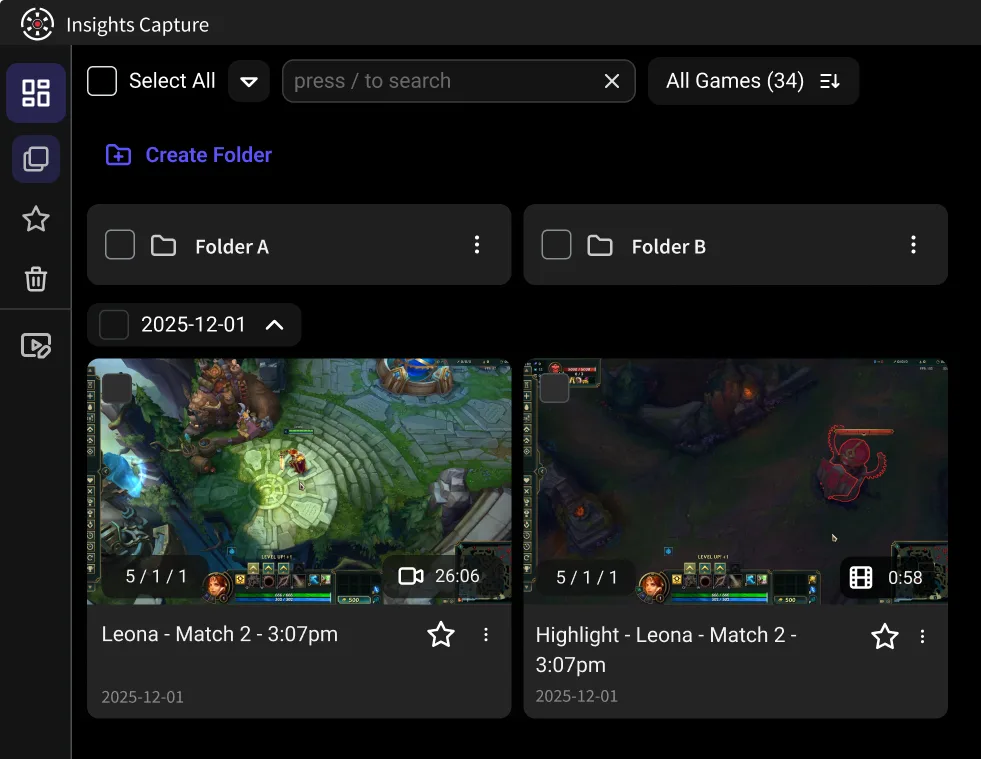
- After the match, open your library, jump to a marked moment, and clip it.
- Share the link, or download the file for editing.
{{button}}
Best CS2 Recording Settings
CS2 is competitive, so protect your frames first:
- Resolution: 1080p for sharing. Record at your native resolution if you're editing later.
- Frame rate: 60 FPS is fine for most clips; 120 FPS if you want slow-motion or you play at high refresh and want it to look right. Our FPS guide has the full reasoning.
- Encoder: hardware or GPU encoding (NVENC, AMD or Intel equivalents) — never CPU encoding while playing a competitive shooter.
- Audio: separate game and mic tracks if you want to mute comms in a public clip. Worth setting up once.
- Storage: keep 20–50 GB free on an SSD for long sessions.
Using Demos Properly (For Review, Not Clips)
Demos remain the best CS2 study tool: camera freedom, other players' perspectives, and the ability to pause on a decision and ask why it went wrong. The workflow that works is to review a demo, note the two or three rounds where you lost the fight, then look at your recorded video of those same rounds to see what you were actually looking at and hearing.
If you review with a team, put the video clips into a VOD review workspace so people can leave timestamped comments and draw on the frame — a demo can't be commented on asynchronously, which is why team review usually happens over video.
Other Methods, Briefly
- Xbox Game Bar — Win + Alt + G for the last 30 seconds. Zero setup, manual only.
- NVIDIA ShadowPlay — instant replay on a hotkey, minimal overhead, NVIDIA only.
- OBS Replay Buffer — total control, real setup, manual.
Full breakdown of every option in how to clip on PC.
FAQs: Recording CS2
1. How do I record CS2 without lag?
Use GPU (hardware) encoding and record at 1080p60. Insights Capture is built for low overhead and won't cost you frames in CS2.
2. Can I clip CS2 without downloading a demo?
Yes — that's the point of background video capture. With Insights Capture running, your kills are already marked on the recording timeline after the match.
3. How do I record CS2 with teammates' voice comms?
Enable separate audio tracks so you can include or mute comms per clip. Let your team know you're recording.
4. Are CS2 demos better than recording?
For studying, yes — camera freedom and other perspectives. For sharing or posting, no: demos aren't video files. Use both.
5. What FPS should I record CS2 at?
60 for standard clips, 120 if you want smooth slow-motion or play at a high refresh rate.
Final Thoughts
The best CS2 clip is the one you didn't have to plan for. Let the recording run, study demos when you want to improve, and keep the video for everything you want to share. Insights Capture is free and handles the recording side automatically — so the next time you ace, the clip already exists. Contact us now!