Medal Clips — How to Record, Find and Download Them (2026)

A Medal clip turns your last play into a shareable link — but where do the files go, why is there a watermark, and who can see them? Everything worth knowing about recording, finding, and downloading Medal clips, plus when a full-session recorder fits better.
A Medal clip is a short video of your gameplay, captured by the Medal app after the moment has already happened and turned into a link you can paste anywhere. It is one of the most common ways players save gaming clips on PC, and it is also the source of a lot of confusion — where the files go, why downloads carry a watermark, and what happens to a clip once you share it. Here is the whole picture.
One quick disambiguation: a “medal clip” can also mean the small metal fastener that holds a medal ribbon on a uniform or in a display case. This guide is about the other kind — video game clips made with the Medal app from Medal B.V.
What Is a Medal Clip?
Medal runs in the background while you play and keeps a rolling buffer of your gameplay. Press the clip hotkey and it writes the last stretch of that buffer out as a video of your best stuff. For many PC games it also clips automatically when it detects something notable — a multi-kill in Fortnite or Valorant, a win screen — so you end up with highlights you never pressed a button for. It can save a screenshot image of the moment as well as the video.
Each clip becomes two things at once: a video file on your machine, and an entry in your Medal library that can be shared as a link with friends. The app is completely free to install and use at its base tier, with a Premium plan on top.
The specs, briefly: Medal runs on Windows 10 or later, captures at up to 4K resolution and 144 frames per second, uses roughly 100–400 MB of RAM while recording, and can save anything from a 15-second clip to a full session.
How to Record Gaming Clips With Medal
- Download Medal and sign in. Medal for Windows installs like any desktop app; there is also a Medal mobile recorder for phone games, and the mobile download is free too.
- Let it detect your game. Launch the title and check the app shows it as detected — if you try to record and nothing happens, this is the single most common reason. The tray icon image also shows whether capture is active.
- Set your clip length. The default buffer is short; raise it if your plays keep getting cut off at the start.
- Press the hotkey. Ctrl+Shift+Alt+C by default. The clip is saved retroactively — you do not need to have been recording deliberately.
- Trim and upload. The built-in editor handles cuts, and one click will upload the result and hand you a share link to send to friends.
Where Medal Saves Your Clips
On Windows, clips are written to your Videos folder under a Medal subfolder by default, organised by game. You can change that path in settings, which is worth doing if your system drive is small — full sessions add up fast.
Clips you upload also live in Medal's cloud, tied to your account. That copy is what a share link points at. Deleting the local file does not remove the uploaded one, and vice versa, which trips up a lot of people trying to free up space.
How to Download Medal Clips (Without a Bypass Site)
You can download any of your own clips straight from the app or from the web player while signed in — there is a download button on the clip page, and it saves a standard MP4. That is the whole download process, and it is worth saying plainly because a small industry of “Medal bypass” sites has grown up around the belief that it is harder than it is.
Those sites exist mostly to strip the watermark or to grab someone else's clip. Two reasons to skip them: they ask you to paste in clip URLs and sometimes account details, and they break constantly. If your own download is failing, the usual causes are being signed out, an ad-blocker interfering with the player, or the clip still processing after upload.
The Free Plan Limits Worth Knowing
Medal's free tier is generous, but there are four walls you will eventually hit:
- Downloads carry a Medal watermark unless you are on Premium.
- Uploads are capped at 1080p, even if you captured at higher quality.
- Upload length is capped on the free plan (reported limits vary by version, roughly 5–20 minutes), so full sessions stay local.
- The experience is ad-supported.
None of that matters if you are firing clips into a Discord channel. It matters a great deal if you are cutting a montage, archiving a season, or reviewing scrims with a team — the watermark and the 1080p ceiling both land directly on the finished product.
Data Safety: Is Medal Safe to Use?
Medal is a legitimate app from a real company (Medal B.V.), distributed through its own site, Steam and the Google Play store, and it is not malware. Like any social app it collects personal info and app activity data, uploads are encrypted in transit, and you can request that data be deleted through your account.
Google's data safety label on the Play listing is the standard one — safety starts with understanding how developers collect and share your data, the app may collect these data types (personal info, app activity), it may share these data types with third parties, privacy and security practices may vary based on your use, region and age, and the developer provided this information. In plain terms: it is normal social-app data handling, and users interact in a public clip feed.
The listing also carries a parental guidance recommended content rating, which is worth knowing if you are setting this up for a younger player — the clip feed is a social service, not a private folder. The practical privacy question is not “is the app safe” but “who can see this clip.” Uploaded clips are shareable by link, so anyone with the URL can watch — including anything visible on screen when you clipped. Check your visibility settings before you clip with Discord DMs or a browser open behind the game.
App Support and Performance
Medal's headline claim is that it will record your gameplay without costing you frames, and on a reasonably modern Windows PC that holds up — it is optimized to run in the background even on lower-spec setups. On older hardware, or in CPU-bound PC games, users do report a performance dip when the buffer is set long and the capture quality high — dropping the resolution or shortening the buffer usually makes the app usable again.
For anything the app itself cannot fix, please open a support ticket on Medal's site, or ask in the active Discord and subreddit where most of the common faults have already been answered. The features that break most often after an update are game detection and the mobile companion, and both are typically fixed by a reinstall rather than a ticket.
Ratings and Reviews: What Players Actually Report
Medal reviews well on the whole, and the recurring complaints are consistent across the store listings and the subreddit: the recorder going inactive after an update, clips failing to upload, and the watermark. The first two are usually fixed by reinstalling or re-detecting the game; the third is a plan limit, not a bug — Premium features remove it.
When Medal Is Not the Right Tool
Medal is built around sharing a moment fast. If what you actually want is a permanent, full-quality archive of everything you played — and the ability to review it with teammates — a different shape of tool fits better.
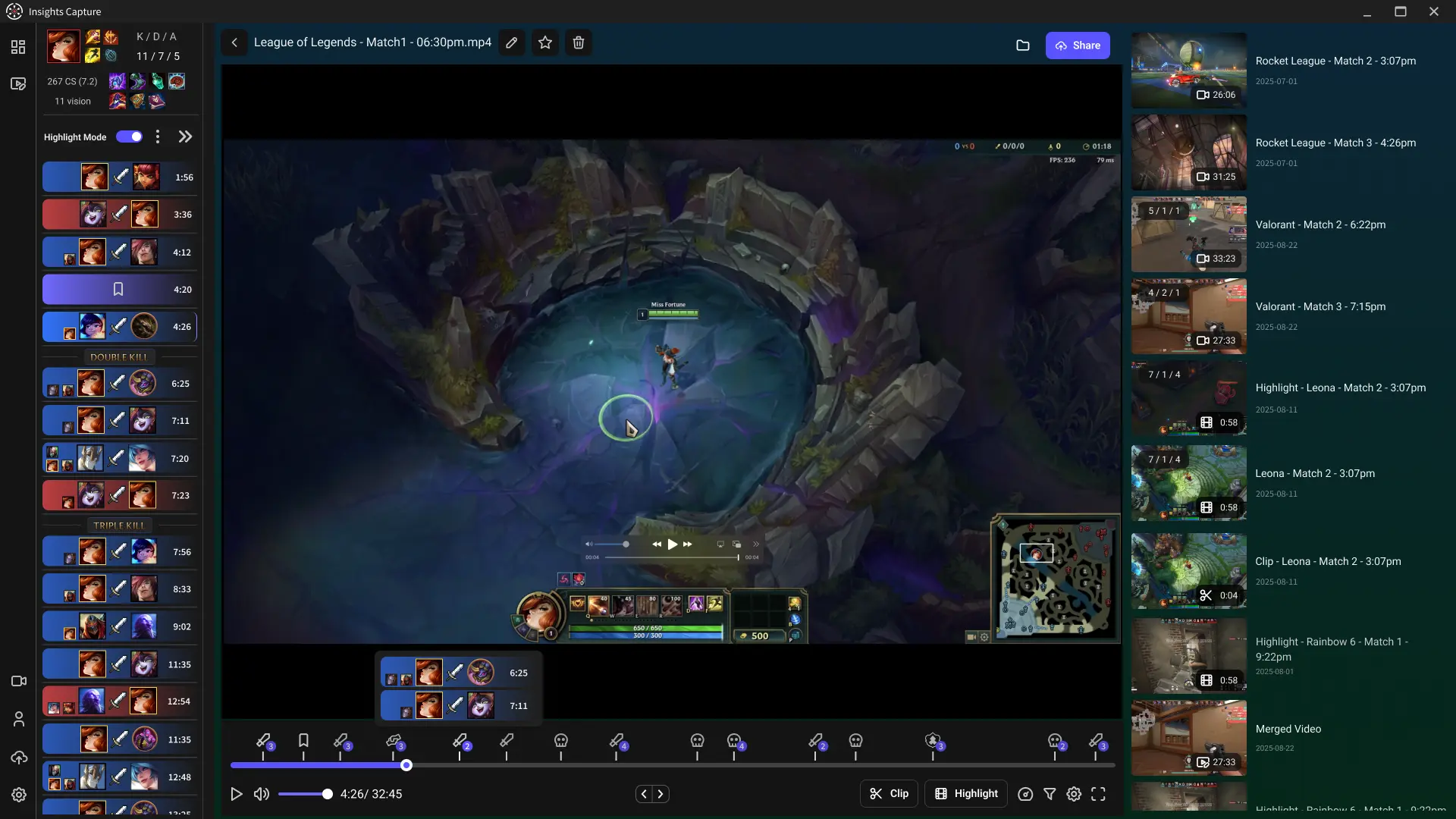
Insights Capture records every match automatically with no measurable FPS cost, keeps the full session rather than only the buffer, and marks kills and objectives on a timeline so you can find the moment afterwards. The free plan has no watermark, no quality cap and no clip-length wall, and share links do not expire. It also includes a VOD review workspace with timestamped comments and drawing tools — features built for teams rather than feeds.
{{button}}
Plenty of players run both. If you are weighing them up directly, we wrote a straight comparison in Insights vs Medal, and a wider survey in 7 best Medal alternatives for clipping. If you are still deciding how to capture at all, start with how to clip on PC.
FAQs: Medal Clips
1. Is Medal free to use?
Yes. Recording, clipping, editing, uploading and sharing all work on the free plan, and the download is completely free. Premium removes the watermark and the 1080p and upload-length limits.
2. Does Medal save clips to your PC?
Yes — by default into a Medal folder inside your Videos directory on Windows, sorted by game. You can change the location in settings.
3. Why can't I download my Medal clip?
Usually because you are signed out, the clip is still processing, or a browser extension is blocking the player. Try the desktop app if the web download stalls.
4. How do I convert a Medal clip to MP4?
You do not need to. Medal saves and downloads clips as MP4 already.
5. Why is my Medal recorder inactive?
The app has not detected your game. Restart Medal before the game, run it as administrator, and confirm the title appears in the detected-games list.
6. Can anyone see my Medal clips?
Anyone with the share link can watch an uploaded clip. Adjust visibility in your account settings if you want them private.
7. Can you earn money from Medal clips?
Medal has run creator reward programmes, but it is not reliable income. Treat clip earnings as a bonus, not a plan.
Final Thoughts
Medal does one job well: turning something that just happened into a link, in about four seconds. Know where the files land, download the clips you care about before you need them, and be aware of the watermark and the 1080p ceiling before you build anything serious on top of it. If you want the archive rather than the highlight reel, Insights Capture is the other half of the setup. Contact us if you have questions.