Insights Capture vs Xbox Game Bar: The Game Bar Alternative for Serious Clips (2026)

Game Bar is the recorder every Windows PC already has — fine until you want highlights found for you, clips longer than the buffer, or editing and sharing. Here's when the built-in tool is enough and when it isn't.
Xbox Game Bar is the screen recorder every Windows PC already has — press Win + Alt + G and the last 30 seconds of gameplay are saved. For a lot of players that's the whole story, until it isn't: the moment you want highlights found for you, clips longer than the buffer, or a recording you can actually edit and share, you start searching for an Xbox Game Bar alternative. Here's the honest comparison between the built-in tool and a purpose-built game recorder.
The Quick Verdict
- Xbox Game Bar is free, pre-installed on Windows 10 and 11, and fine for occasional clips — zero install, one keyboard shortcut, done.
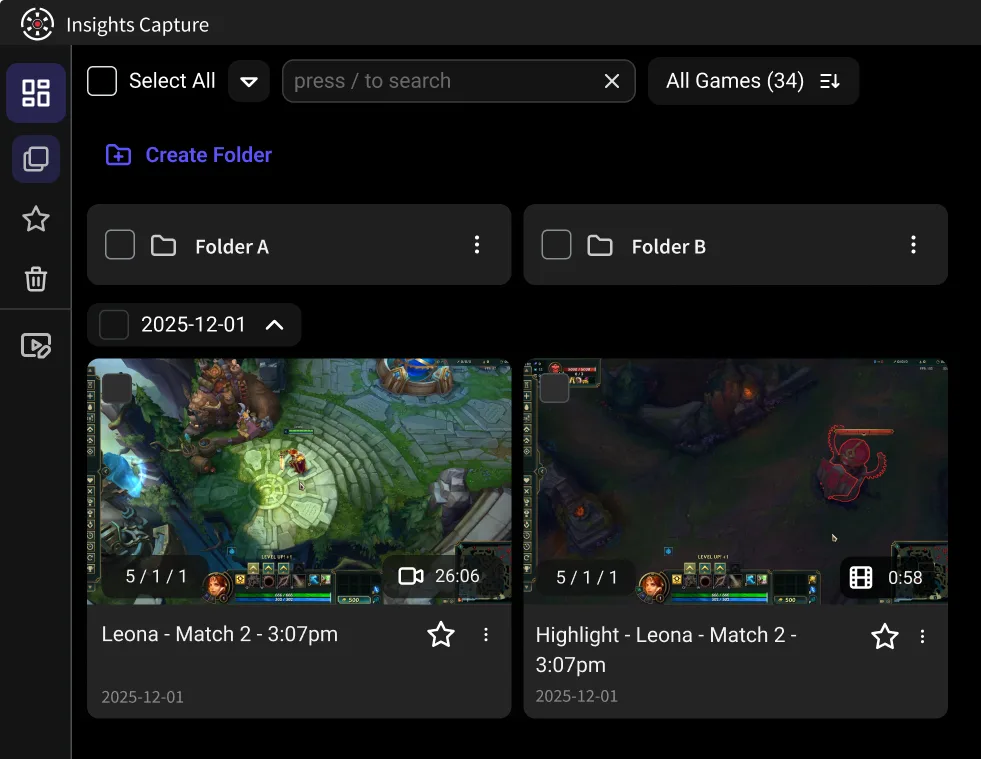
- Insights Capture records every match automatically, marks kills and wins on a timeline, has no clip-length ceiling, and includes editing, sharing and team review. It's the upgrade for anyone who clips more than once a week.
- Game Bar's biggest limits: manual-only capture, a capped buffer, no highlight detection, no editing, and it records one app at a time — never the desktop or File Explorer.
What Xbox Game Bar Does Well
- Already installed. Press the Windows key + G and the Game Bar overlay is there — widgets for capture, audio, and performance monitoring included.
- Record the last 30 seconds with Win + Alt + G, or start recording manually with Win + Alt + R and stop recording the same way.
- System audio and microphone capture are built in, with a mic toggle mid-recording.
- Recorded video lands in the Captures folder as ordinary MP4 files — no proprietary formats.
- Free forever, no ads, no watermark.
For “record my computer screen quickly with zero setup,” it's genuinely fine.
Where Game Bar Falls Short
- Everything is manual. No game detection, no highlight detection. If you didn't press the keyboard shortcut, the moment is gone — the recorder with the fastest hotkey still loses to the one that never needed pressing.
- The buffer is capped. Background recording maxes out (30 seconds by default, configurable up to 10 minutes) and eats RAM while enabled; full manual recordings are capped at 4 hours.
- One app at a time. Game Bar records a single application — not full screen desktop, not multiple windows, and it famously refuses to record the desktop or File Explorer.
- No editing, no sharing. You get MP4 files in a folder. Trimming, combining clips, posting to YouTube — all of it happens in other software.
- It can misbehave. Widgets that won't open, Win + Alt + R not working after an update, capture failing in windowed games — Microsoft's own support pages walk through the fixes.
Insights Capture vs Xbox Game Bar: Feature by Feature
Install. Game Bar: none needed. Insights Capture: one free download for Windows.
Capture model. Game Bar records when you press the shortcut. Insights Capture detects your game and records the entire match automatically — the whole session is there afterward, not just the seconds you remembered to save.
Highlights. Game Bar has none. Insights Capture marks kills, wins and key moments on a timeline across 10,000+ games, so clipping is scrolling to a marker and clicking twice.
Clip length. Game Bar's retroactive clips stop at the buffer's limit. Insights Capture has no such ceiling — clip 8 seconds or 8 minutes from anywhere in the match.
Editing and sharing. Game Bar: none. Insights Capture: built-in trim and merge, cloud share links, one-click posts to Discord and social platforms, uploads to YouTube.
Review. Insights.gg adds a VOD review workspace — timestamped comments and drawing tools your team can use on the same recording. Nothing in Windows compares.
Performance. Both use hardware encoding and are light on FPS. Disabling Game Bar's background recording actually frees a little memory; Insights Capture's overhead is a few percent on mid-range hardware.
Do You Need to Uninstall Game Bar?
No — and you shouldn't. Game Bar's performance widgets and Xbox social features (parties, chat) are independent of its recorder, and the two tools coexist fine. Most players simply turn off Game Bar's background recording once Insights Capture is handling capture, and keep Win + Alt + G as a nostalgic backup that never gets pressed again.
{{button}}
Other Game Bar Alternatives Worth Knowing
- OBS Studio — free and infinitely configurable, records full screen, multiple sources, webcam overlays; real setup cost: Insights vs OBS.
- NVIDIA ShadowPlay — the GPU-native replay buffer for GeForce owners: Insights vs ShadowPlay.
- Medal and Outplayed — auto-clipping apps like Insights: Insights vs Medal and Insights vs Outplayed.
- Full ranked list: 10 best game clipping software. Console players: see how to clip on Xbox — the console's Game Bar cousin has its own rules.
More Xbox Game Bar Alternatives by Use Case
- Bandicam records games that run on DirectX, OpenGL and Vulkan, including high-FPS gameplay.
- Filmora combines recording and editing in one workflow, records without Game Bar's time limits and exports straight to YouTube.
- Camtasia combines screen recording and video editing in one app.
- ShareX is a lightweight, open-source tool focused mainly on screenshots, with basic screen recording.
- AMD Software: Adrenalin Edition includes screen capture for AMD graphics card owners.
- Tipard Screen Capture records your screen in 4K.
- Fraps is the classic recorder that shows your FPS on screen while it records.
- NVIDIA ShadowPlay, part of the NVIDIA app, records at high resolutions, up to 8K HDR on supported cards.
FAQs: Xbox Game Bar Alternatives
1. Is there an alternative to Xbox Game Bar?
Yes — OBS Studio for manual control, ShadowPlay for NVIDIA owners, and automatic recorders like Insights Capture that capture and clip without any hotkey.
2. Is Game Bar better than OBS?
Game Bar is simpler; OBS is vastly more capable (full screen recording, webcam, audio control, streaming). For automatic gameplay capture, neither matches a purpose-built game recorder.
3. Does Xbox Game Bar reduce performance?
Barely, when idle — but its background recording buffer uses memory while enabled. Hardware-encoded recorders like Insights Capture keep the recording cost to a few percent either way.
4. How can I record my screen on Windows without Game Bar?
Install a screen recorder: Insights Capture for gameplay (automatic), OBS for everything else (manual). Both are free.
5. Why is Win + Alt + R not working?
Usually Game Bar is disabled in Settings → Gaming, the shortcut was rebound, or the focused window isn't recordable (desktop and File Explorer never are).
6. Can I get rid of Game Bar?
You can disable it in Settings → Gaming without uninstalling anything — worth doing for the background buffer's memory if another recorder handles your capture.
Final Thoughts
Xbox Game Bar is the recorder you already have; Insights Capture is the recorder you'd choose. One saves the last 30 seconds when you ask; the other saves the whole match, finds the moments worth keeping, and hands your team the tools to learn from them. If clips are an occasional whim, keep the shortcut. If they're part of how you play, download Insights Capture free. Contact us with questions.